Live status badge
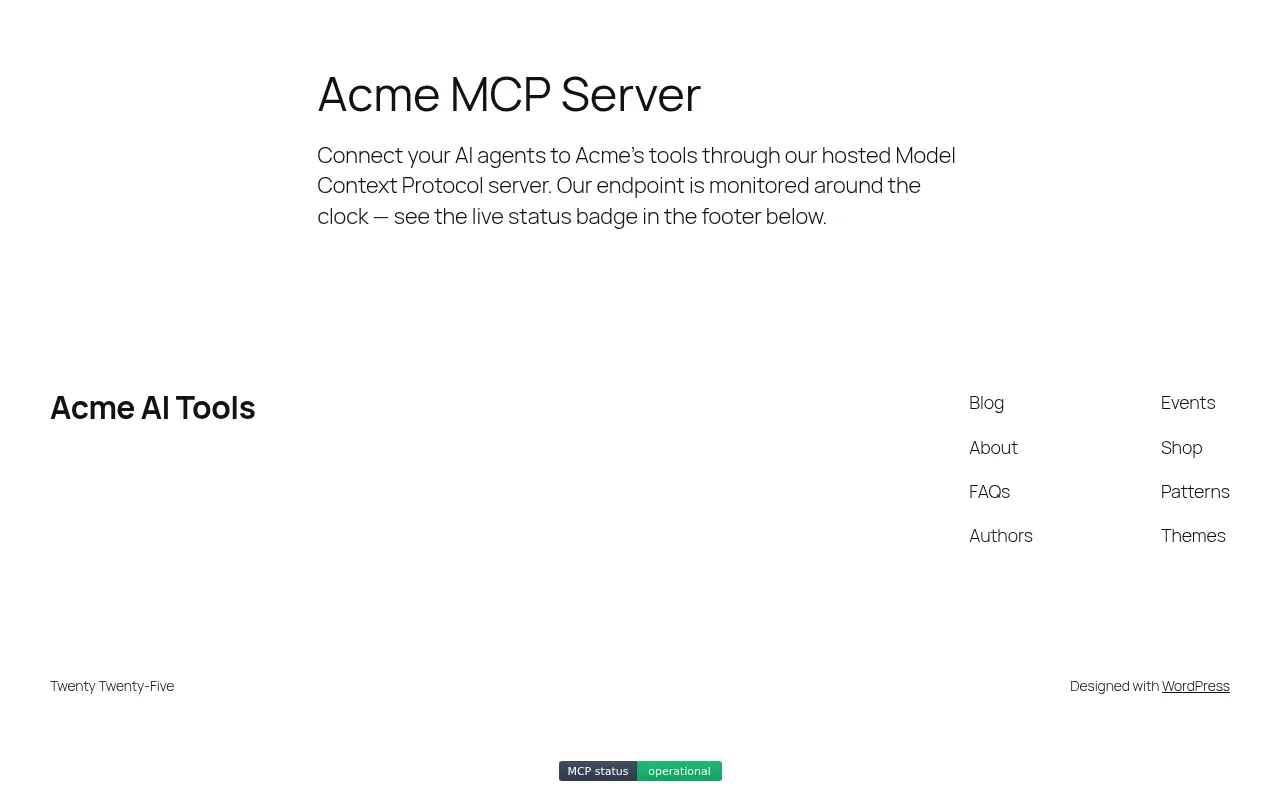
Operational, degraded, down or unknown, updated from the latest checks. Clicking it opens the server’s public status page on mcpserverstatus.com.
WordPress plugin · v1.4.0
Live MCP Server Uptime Monitor & Status Badge
Downtime costs trust. Watch every endpoint, 24/7.
Bring live MCP server status onto your WordPress site as a small, honest badge, and see your monitors and their history right in wp-admin.
The plugin is awaiting WordPress.org review; the listing link goes live once it is approved.
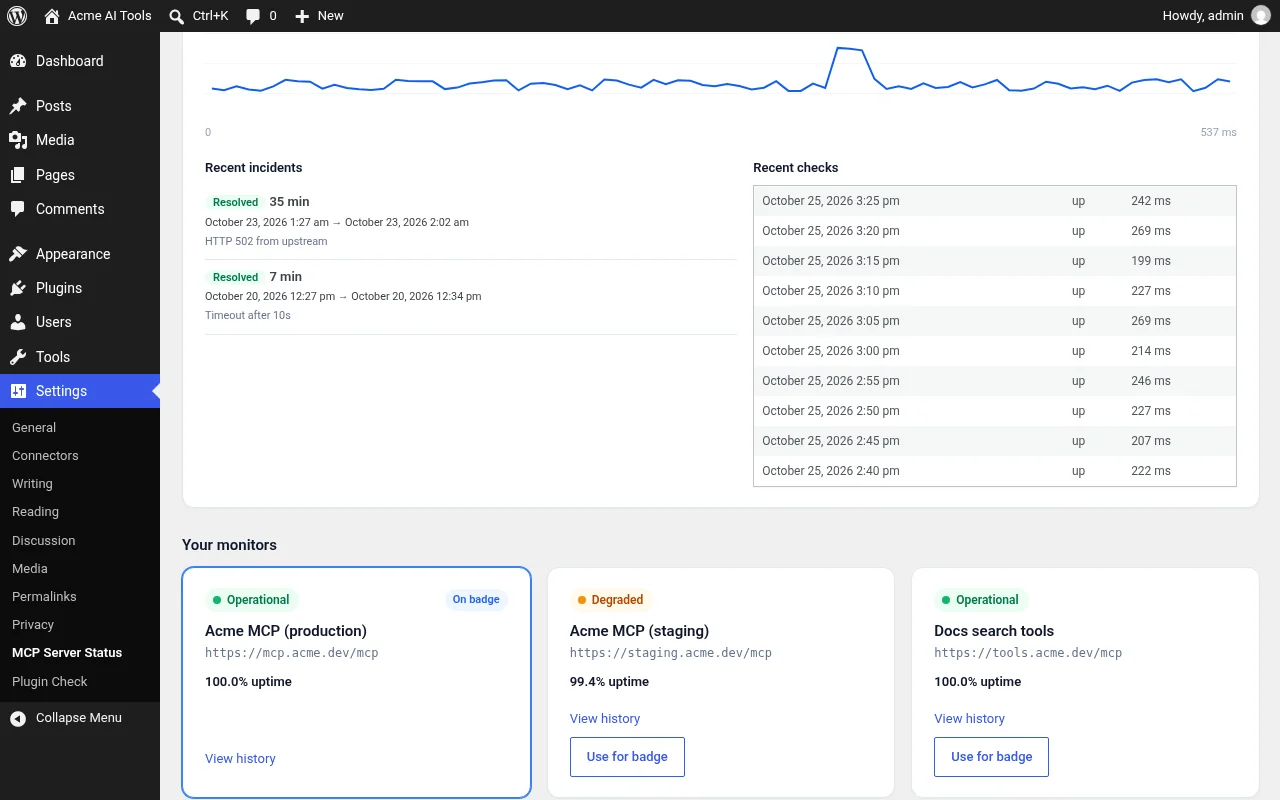
MCPServerStatus monitors Model Context Protocol servers from its own infrastructure: it runs regular checks, records availability and sends alerts when a server stops responding. The MCP Server Status plugin displays that live status on your WordPress site and, if you connect your account, lets you manage the badge monitor and browse history from wp-admin. All monitoring runs on mcpserverstatus.com, so nothing extra runs on your WordPress server.
Operational, degraded, down or unknown, updated from the latest checks. Clicking it opens the server’s public status page on mcpserverstatus.com.
An opt-in footer badge (off by default), the [mcp_status] shortcode, the “MCP Server Status Badge” block, or the “MCP Server Status Badge” classic widget.
Click “Connect to MCPServerStatus”, sign in or create a free account, and your monitors are fetched automatically. Pick one for the badge from a dropdown, or add a new MCP server right from WordPress.
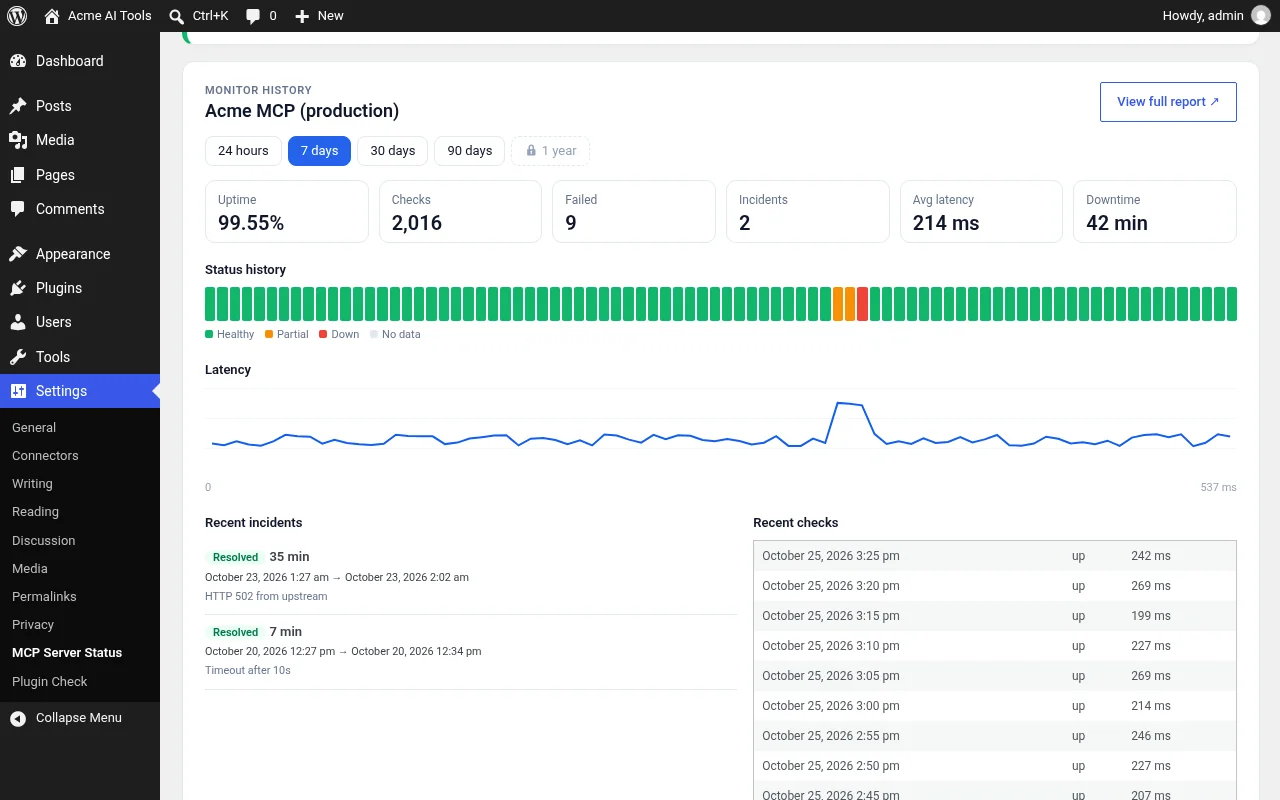
A history panel on the Overview tab with uptime, checks, failures, incidents, status timeline bars and a latency sparkline for the selected range.
Downtime and recovery alerts come from your MCPServerStatus account (email on the free plan; Slack and webhooks on Pro and Team). The plugin itself only displays status.
The badge is one small, lazy-loaded, CDN-cached SVG. Unless you connect your account the plugin makes no server-side requests, and it never adds tracking.
| In the plugin | Free | Pro | Team |
|---|---|---|---|
| History ranges | 24 hours, 7 days | + 30 and 90 days | + 1 year |
| Uptime, checks, failures, timeline | Yes | Yes | Yes |
| Average latency, downtime, full incident log, recent checks | No | Yes | Yes |
See pricing for check frequency and endpoint limits.
Upload the mcp-server-status folder to /wp-content/plugins/ (or install from Plugins › Add New once it is listed on WordPress.org) and activate it.
Either click “Connect to MCPServerStatus” to pick one of your monitors, or paste a public server slug or full mcpserverstatus.com server URL on the Badge tab.
Tick “Show badge in footer” and choose an alignment, or add the shortcode, block or widget wherever you want it.
When connected, use “View history” on any monitor card to see uptime, incidents and recent checks without leaving WordPress.
Place the badge in any post or page. align can be none, left, center or right. If slug is omitted, the slug from the settings page is used.
[mcp_status slug="github"][mcp_status slug="github" monitor="" align="center"]To show your own monitor, pass its public ID from your dashboard as monitor.
In the block editor, add MCP Server Status Badge (mcpserverstatus/badge) and set its slug, monitor and alignment. For sidebars and footers, use the classic widget MCP Server Status Badge.
Every placement renders the same badge image:
https://mcpserverstatus.com/badge/<slug>.svg
https://mcpserverstatus.com/badge/m/<monitor-id>.svg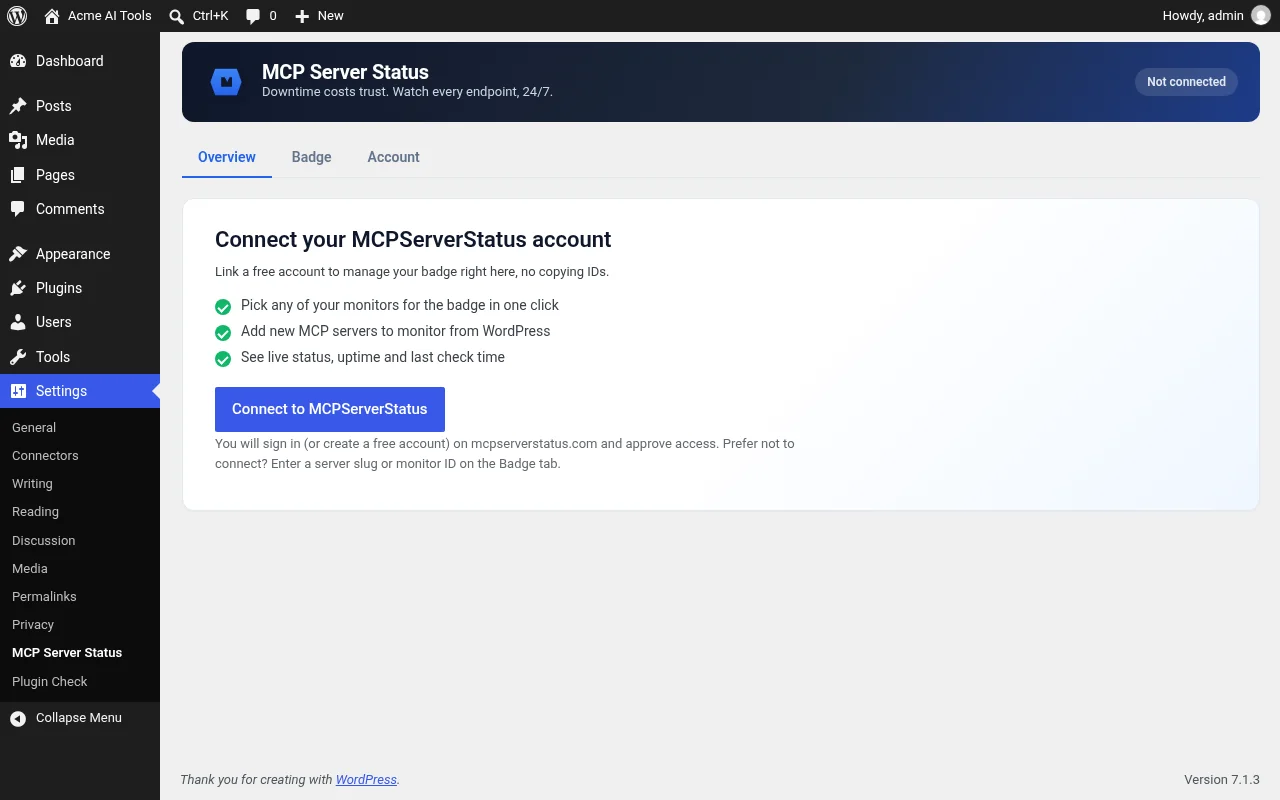
It links your site to your MCPServerStatus account so you can pick a monitor from a dropdown and add new servers without copying IDs. The connection can only list your monitors and add new ones. It cannot delete monitors, change alerts or see billing. Disconnect any time from the plugin settings or under “Connected sites” in your dashboard. Connecting is optional.
No. The plugin adds a status badge. The badge links to a public status page hosted on mcpserverstatus.com with uptime history and incidents for that server.
Alerts come from your MCPServerStatus account (email on the free plan), not from the plugin. The plugin only shows status.
Free plans get 24-hour and 7-day ranges. Pro and Team also get average latency, downtime, the full incident log, recent checks and 30/90-day ranges (Team: 1 year). Plan limits are enforced by mcpserverstatus.com; history is cached for 5 minutes and “Refresh” clears it.
Open the server in the directory at mcpserverstatus.com/mcp-servers. The slug is the last part of the URL, e.g. github in /mcp-servers/github. You can also paste the whole URL.
The slug was not found or the server has no recent checks. Double-check the slug on mcpserverstatus.com.
No. It outputs one small, lazy-loaded SVG image cached by a CDN. Nothing runs on your server unless you connect your account.
Create a free account to monitor 3 endpoints with email alerts, then connect the plugin.